Home Page
Site Map
Work History
Job Tour
GMD Tour
<
>
Contents
Survey
DPE 1
DPE 1 Tools
Generator 1
Monitoring
DPE 2
DPE 2 Tools
Generic Help
NSE Help
Generator 2
GUI Kit
Subscription 2
ODL Editor
GMD
|
Name Service Editor Help
TnNameServiceEditor Version: 1.22 (or higher)
-------------------------------
Contents:
General
Buttons and Menus
-------------------------------
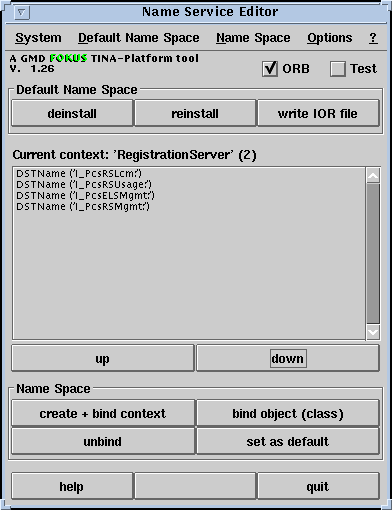
Name Service Editor is a tool for managing project name spaces.
For this purpose it allows definition and afterwards - by one button click - installation / deinstallation of the project name space. Other contexts or objects may be bound / unbound within the name service too and the name service IOR file may be written to file.
The project uses a hierarchy starting from the top level context. As default, "TINA-Platform" will be used as top level context name. But there may be more than one name space hierachies starting from the top level (a feature which is not used in this project).
If no name space is defined and set as default (see below), using button or menu item "install" has no effect.
By default it installs the following base-hierarchy:
- TINA-Platform
- CapsuleFinder
The bound object is the capsule finder of the T-MMCS capsules.
General
Only capsule launcher specific functions are listed here. Consult the generic help text for system maintenance, settings and options.
Opening / Closing
Closing of the name service editor does not effect the name spaces and their objects.
Reset of the project name space leaves possible existing other name spaces and objects untouched. - Automatic installation of NS
When starting the image (name server application) and opening the editor automatically, the name space also may automatically be installed from default. This includes automatic start of the ORB.
- Default Name space
If you have installed the chosen name space hierarchy, you may use the "set as default" function (see below) in order to have the possibility to install the same name space again from memory (after it's deinstallation). The so stored default name space hierarchy may be also written to disk. A user might create a number of name spaces, and later read one of it from file to default in order to install this default repeatedly for testing purposes.
Buttons and Menus
Default Name Space
- install / deinstall
To create the name space from default (see "set as default"). This includes writing of an IOR file to the path/filename specified by the UNIX environment variable (the name of which may be set using menu item "specify ORB naming environment variable name" (see Generic part of this manual)).
- reinstall
To reinstall name space from default (deinstall and install combined).
- write IOR file
To write the name service IOR file to path/filename specified either by the UNIX environment variable or by the actual DST settings naming service filename. If different, a dialog asks, which one to choose.
Name Space
- up
To go to the next higher context level.
- down
To resolve the selected item:
- to display the selected context or
- to open a debugger on the selected object.
If the displayed context contains only one item (context or object), it's not needed to select it.
- create + bind context
A dialog will ask for the name of the context which will be installed in the displayed one.
- bind object
A dialog will ask for the class name of the object and it's representing name in the name space. It will be installed in the displayed context.
- unbind
To unbind (destroy) the selected context (and all it's subcontexts and objects) or object.
- set as default
To set the existing name space hierarchy as default. The so stored name space may be restored using "install" or written to disk using "write file".
- write file
To write the default name space hierarchy to disk (see "set as default"). If you do not specify a file name, the default file name (TangramNameSpace.001) will be used.
- read file
To read a name space hierarchy from disk and set it as default (see "set as default").
- update
To update the name space display.
Name space top level context
If you choose to install another top level context name and click on "set as default" (see below), the new top level name will be used by other tools of the same capsule too, but you have to inform the tools of other capsules about it. In a Smalltalk capsule you can easily do this by evaluating
TnNameServiceEditor topLevelContextName: myName
replacing "myName" by the name of your choice.
|
|