Home Page
Site Map
Work History
Job Tour
GMD Tour
< >
Contents
Survey
DPE 1
AppLau Help
DPE 1 Tools
Generator 1
Monitoring
DPE 2
DPE 2 Tools
Generator 2
GUI Kit
Subscription 2
ODL Editor
GMD
TnApplicationLauncher Help TextTangram Application Launcher V.3.32 alpha, help text
------------------------------- Contents:1. Where to find it.2. Description.3. Usage.General Check Boxes Buttons Menus ------------------------------- 1. Where to find it.You find class TnApplicationLauncher in the latest version of application Tn_DPE. This help text is available from /net/WWWVST/html/ovma/tangram/project/alte_dpe/tools/TnApplicationLauncherHelpX.txt (where X is the version number). To use this help text online, you have two possibilities:
To use the HTML version of this text with netscape started from an Application Launcher you have also two possibilities:
Installation of the launcher: See TnApplicationLauncherInstallation1.1.html If you want to use monitoring from your application launcher, you have to load application Tn_Monitor before opening a new application launcher gui. 2. Description.
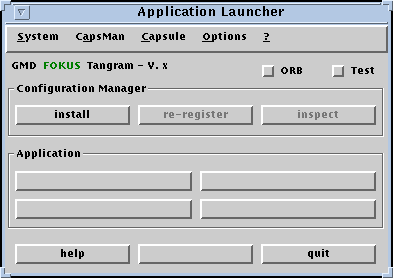
Application Launcher is a tool for managing Tangram T-MMCS applications (or modules resp.). It is the user interface for the managers of an application. For this purpose it allows installation / deinstallation of the application's configuration manager (CM) as well as re-registration of the CM at the name service (e.g. after restart or saving the environment). Methods for the creation and termination of COs (without using templates or written code in a workspace etc.) may be started. So it replaces the templates (templates.html, also available as templates.txt) in use until now. Application specific functions (e.g. for the creation of COs) may be started and application specific grafical user interfaces may be opened using buttons or menus of this launcher. For this purpose specific menu items and buttons for application functions may easily be installed by the subclass (for details consult the appLauncherInstallation.txt).
Application launcher may be opened automatically when starting the Smalltalk environment. The CM may be automatically installed (including automatical start of the ORB) and the application may be automatically connected to the monitoring event channel. 3. Usage.General:You open the Application Launcher by evaluating a phrase like "TnXYZLauncher open" and replacing "XYZ" by the name of your application (e.g. TnAccessSessionLauncher). There are three possibilities: "open" opens an existing gui (if available) or opens a new one (if needed). "openNew" asks you, if there is an existing gui with a configuration manager (CM), whether you want to use the existing gui (inclusive CM) or to create a new gui. "absolutelyNew" always opens a new one (and forgets a possibly existing CM). (See "install / deinstall" below). When starting the image (application) a new application launcher may open up automatically, or an existing one may openup it's window (see menu function "Options - set auto opening". When starting the image (application) and opening the launcher automatically, the CM may be also automatically installed. This has to include automatic start of the ORB. The monitoring event channel may be connected (if needed) too. You may save the application (image) from your application launcher (see menu function "System - save", after you have closed all other windows including DST Launcher (titled "HP Distributed Smalltalk") before saving. When you start the image again, only the application launcher window will be opened. (When you close this (last) window, Smalltalk opens a DST Launcher automatically). The above features combinded you may follow these steps to an automatic start:
Check Boxes:
This check box displays whether the ORB is running or not. Clicking starts or stops the ORB immediately (On stopping no dialog asks for a delay like using the ORB Control Panel). This check box has no ready made function. It may be used by application launcher subclass programmers to switch and signal a mode 'test'. Using this check box calls method #testButtonClicked which may be overwritten by subclass. Buttons:Configuration Manager To create an instance of the application's configuration manager and register it at the name service. This CM will be held by the application launcher even if you quit application launcher, so on next opening of the application launcher the configuration manager will still be accessible. To register the configuration manager again. (E.g. needed after saving the application if IIOP transport ist set to dynamic allocation). To open an inspector on the configuration manager accessed via name service. Application These buttons are for application specific purposes. An application specific launcher function description is added at the end of this text when opening this text from a specific application launcher. Unspecific To see this text To close the application manager. Closing does not effect the configuration manager and it's data. Menus:Functions marked with a (*) are for developmental purposes of the T-MMCS and may be obsolete after completion. System
To open up a Request Broker Panel. To start or stop the ORB. When the ORB is running, this item shows a check mark at it's left side. To start or stop the ORB and open up a Request Broker Panel.
To open the Smalltalk environment's launcher. To save the Smalltalk environment and stop the ORB first. To send the message #cleanUp to every instance of configuration manager, it's life cycle managers and it's computational objects, including the running configuration manager. May be helpful to delete garbage from lost configuration manager instances. CleanUp details depend on the implementation of this method in the specific classes. To send the message #destroy to every instance of configuration manager and interface. To open an absolutely new launcher (without an existing CM) and close the existing launcher. CM
To create an instance of the application's configuration manager and register it at the name service. To register the configuration manager again. (E.g. needed after saving the application if IIOP transport ist set to dynamical allocation). To register the configuration manager using another name (only for testing purposes). To open an inspector on the configuration manager accessed via name service.
An application specific launcher function description is added at the end of this text when opening this text from a specific application launcher. Options
When on, the application launcher window opens up automatically when starting the image. When on, this item shows a check mark at it's left side. Please note
When on, the application launcher automatically installs the CM when opening the window, including start of the ORB (if needed). When on, this item shows a check mark at it's left side. Please note:
When on, the application launcher automatically connects the application to the monitoring channel (if needed) when installing the CM and starts the monitor (if needed). When on, this item shows a check mark at it's left side. Please note generally:
Tools
To start a Name Service Editor (if available). To start an IDL to Smalltalk Generator (if available). To open a Request Monitor for the application (if available). To perform the chosen monitoring actions (see options below). To connect to the monitor to the monitor display (via event channel). To send a test request to the monitor display. Options: When on, these items show a check mark at their left side. To monitor incoming requests. To monitor outgoing requests. To beep on handling a request. To wait before handling a request. To write a log line into Transcript. To write a log line into a local file. To write a log line into a common file. To open a Request Monitor Net Editor (if available).
For details on monitoring consult RequestMonitor help text. ? (= Help)
To open a help text window showing the complete help text including the application specific part. To open a help text window showing only the the application specific help text. (c) GMD FOKUS Tangram tko, hpu 97-02-06, tko 97-05-26 |